Dropbox Calendar
Time
Organize your projects by time, not by folders
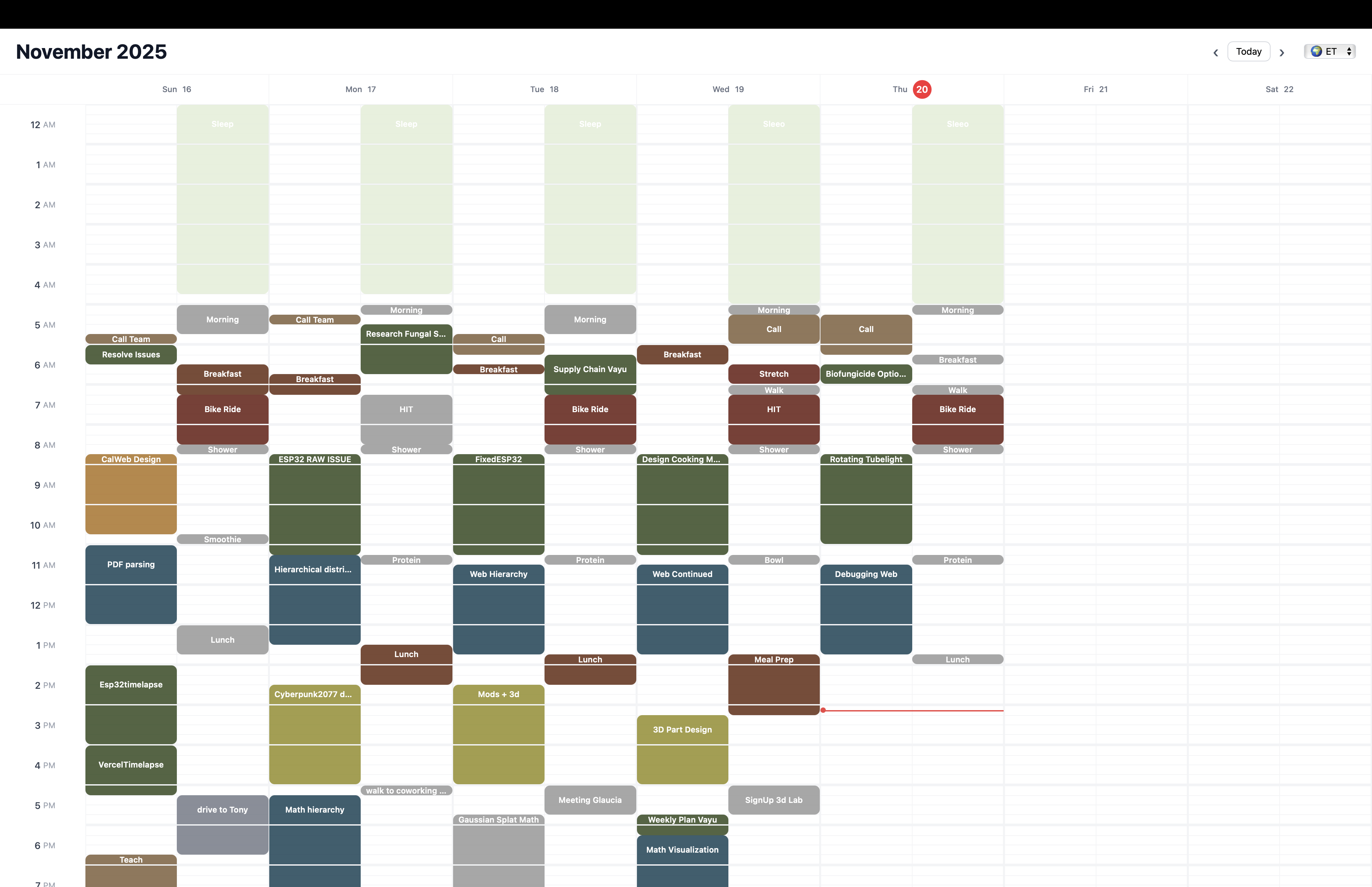
A desktop calendar application that lets you find projects through your calendar while automatically creating backups at each timestamp.
Mac
Apple Silicon (M1/M2/M3) or Intel (older Macs)
Installation Instructions
If your app is failing to open with a "damaged" error:
- Make sure you copy the app to Applications
- Open Terminal (search for "Terminal" in Spotlight)
- Paste this command and press Enter:
sudo xattr -rd com.apple.quarantine "/Applications/Dropbox Calendar.app"- Enter your password when prompted
- Your app will now work
How to check your Mac type: Click the Apple menu → About This Mac. If it says "Apple M1/M2/M3" you have Apple Silicon. If it says "Intel" you have an Intel Mac.
Windows
.exe for most users, .msi for enterprise/IT deployment
How to check: Press Windows key → type "About" → click "About your PC". Look for "System type" — most modern PCs are 64-bit (x64).
Linux
AppImage works on most distros. Use .deb for Debian/Ubuntu or .rpm for Fedora/RHEL/openSUSE.
How to check: Open terminal and run uname -m. If it shows "x86_64" you need the amd64/x86_64 version.
Features
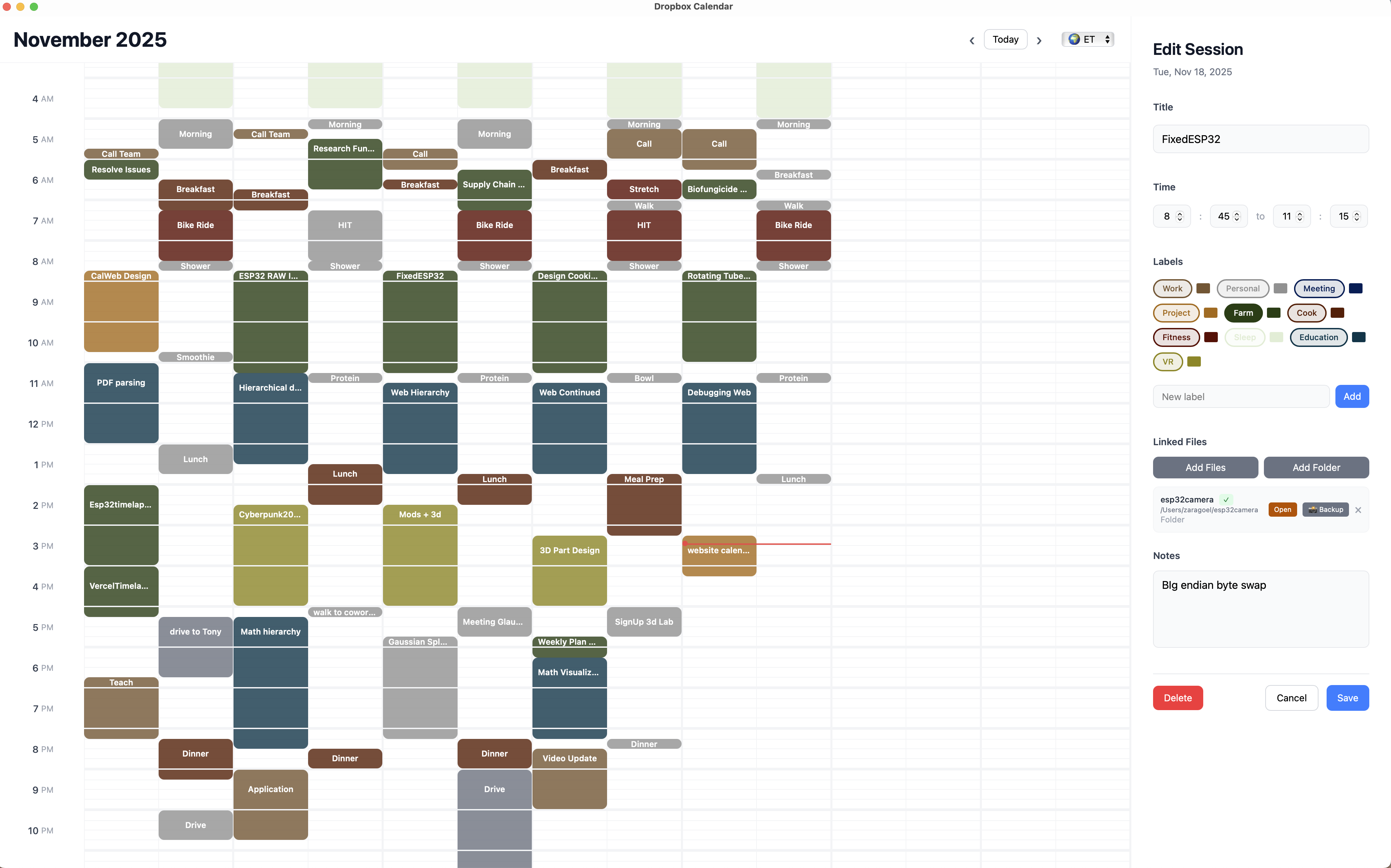
Color-Coded Labels
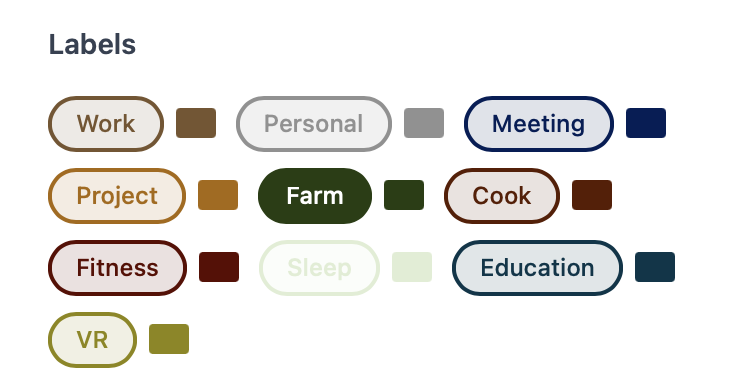
Organize your time with custom labels. Tag sessions as Work, Personal, Meeting, Project, or create your own. Each label has its own color for instant visual recognition.
Find what you need at a glance. Your calendar becomes a visual map of how you spend your time.
Link Your Files
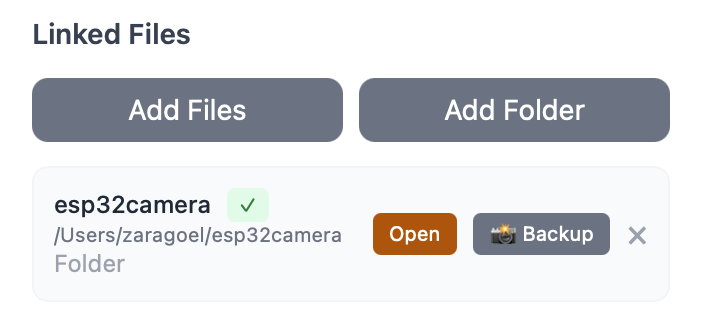
Connect files and folders directly to your calendar sessions. Click on any session to instantly open the files you were working on at that time.
No more searching through endless folders. Your calendar remembers where everything is.
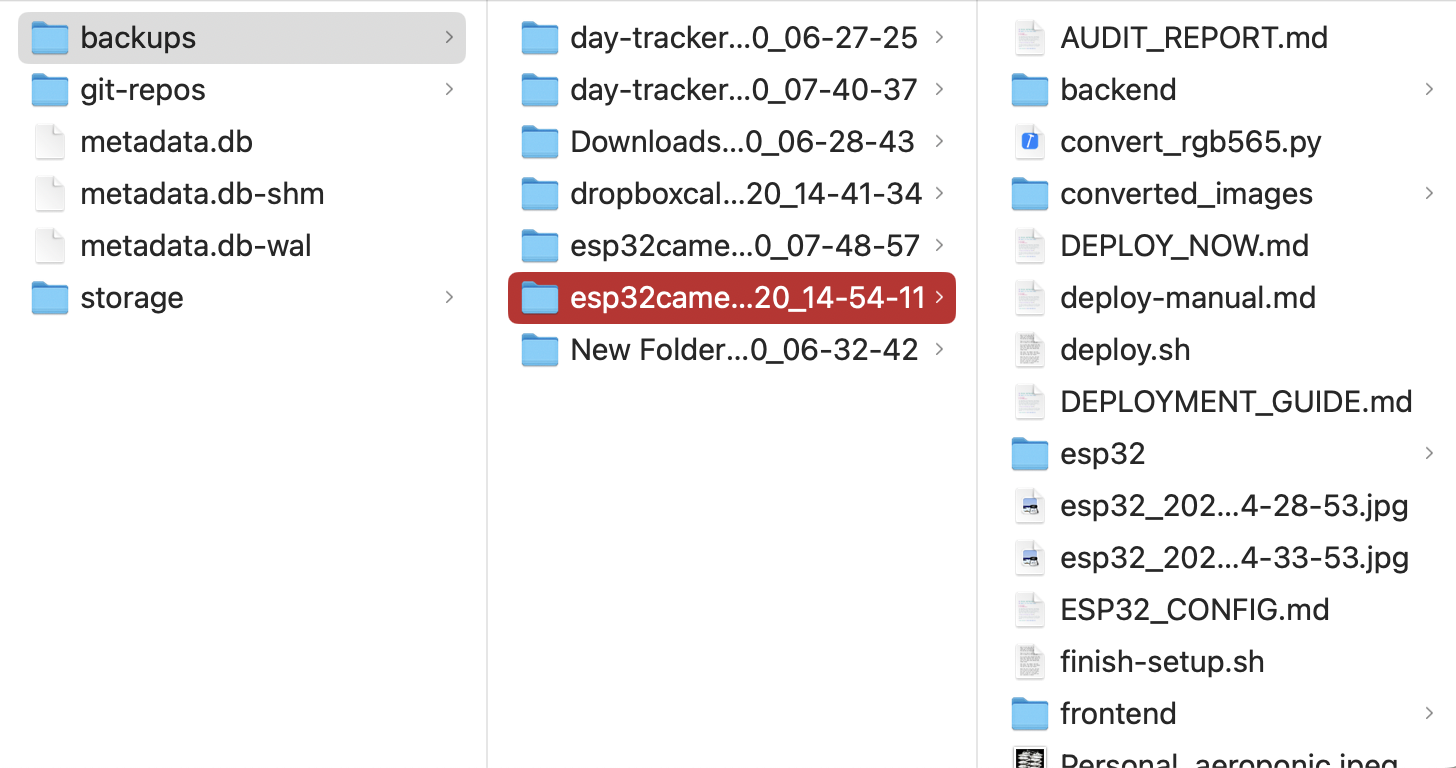
Automatic Backups
Every session creates a backup snapshot of your linked files at that timestamp. If something goes wrong, you can always return to an earlier version.
Your work is protected automatically. Navigate through time and recover files from any session in your calendar history.
Timezone Aware
Work across different timezones without confusion. Your calendar automatically adjusts to your local timezone while preserving the original timestamp.
Perfect for distributed teams or when traveling. Your sessions always display in the right time, no matter where you are.

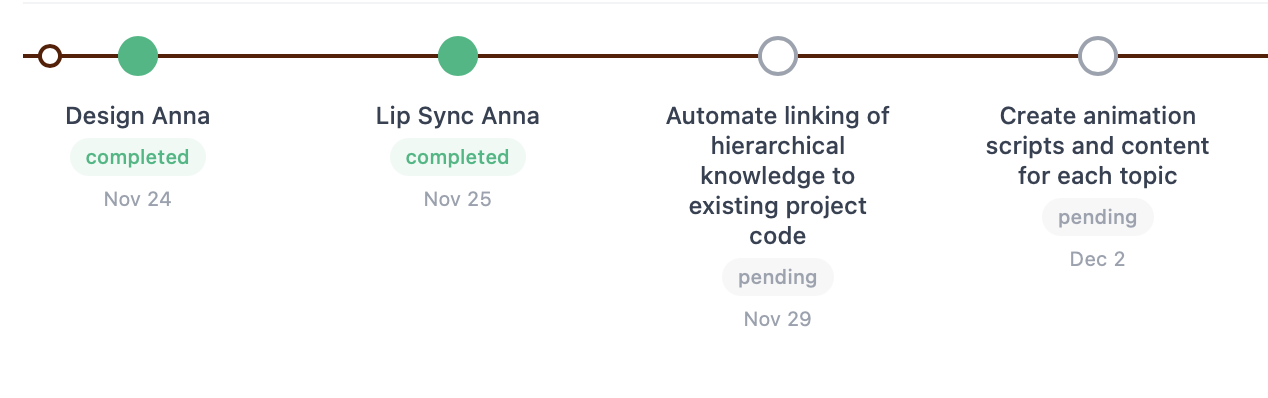
Timeline View
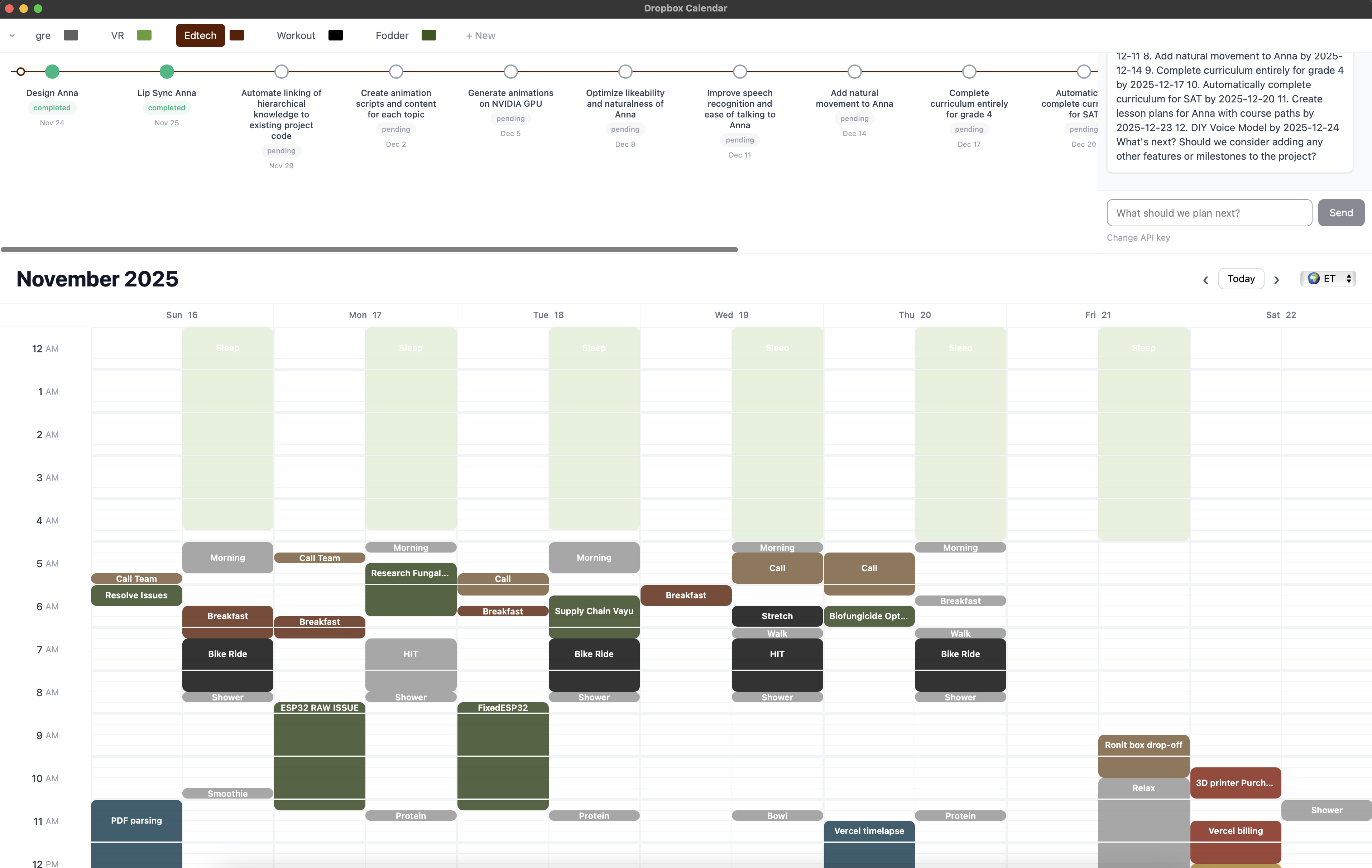
See your day at a glance with the timeline view. Visualize how your sessions flow throughout the day and plan your time more effectively.
The timeline integrates seamlessly with your calendar, giving you both a bird's eye view and detailed session information.
AI Planning Assistant
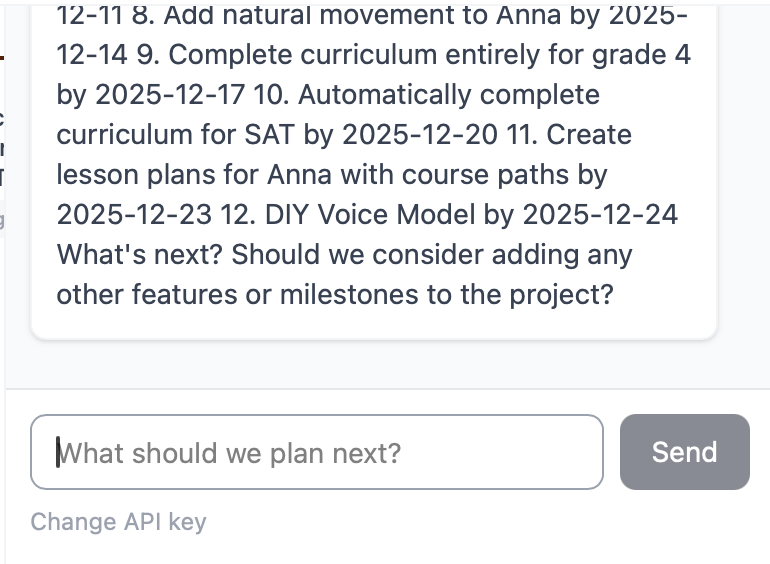
Chat with an AI assistant to plan your day. Describe what you want to accomplish and let it help you organize your timeline and create sessions.
The chatbot can edit your timelines, suggest schedules, and help you stay on track with your goals.
Setup Instructions
To use the AI assistant, you'll need a Groq API key:
- Visit console.groq.com/keys
- Create a free account or sign in
- Generate a new API key
- Paste it in the app settings

Categories
Group your sessions into categories for better organization. Create custom categories that match how you think about your work.
Filter and view sessions by category to focus on specific areas of your life or projects.
Philosophy
Remember when you worked on something by looking at your calendar. Click to open those files. Have a safety net if something breaks.
Built to organize projects by time rather than folder hierarchies, with a way back when things go wrong.